How To Use Google Search Console: Complete Guide & SEO Keyword Use
If you want your website to rank higher, you need to understand what Google sees. That’s where Google Search Console comes in. This free tool shows you exactly how your site performs in search results. I’ve used it for years to help clients boost their rankings. It’s one of the most powerful SEO tools out there. In this guide, I’ll walk you through everything you need to know. Let’s get your site working harder for you.
What Is Google Search Console and Why Does It Matter for SEO?
Google Search Console is a free tool from Google. It lets you monitor how your website appears in search results. You can see which queries bring visitors to your site. You’ll also find out if Google has trouble accessing your pages. Think of it as a direct line of communication with Google itself.
For SEO, this tool is essential. It shows you real data straight from the source. No guessing involved. I check my clients’ accounts weekly to spot issues early. When you use Google Search Console regularly, you catch problems before they hurt your rankings. It’s like having a health monitor for your website that never sleeps.

Setting Up Your Account and Submitting Your Sitemap
Getting started with Google Search Console takes just a few minutes. First, go to the GSC website and sign in with your Google account. Then add your website property. You’ll need to verify that you own the site. Google offers several verification options.
Once verified, submit your sitemap right away. Your sitemap tells Google about all the pages on your site. Head to the Sitemaps section in the left menu. Enter your sitemap URL and click submit. This helps Google discover and index your content faster. I always do this step first with new client sites.
Getting Your Pages Indexed the Right Way
After submitting your sitemap, Google starts crawling your site. The index coverage report shows which pages are in Google’s index. You want to see your essential pages listed as valid. If pages aren’t getting indexed, this report tells you why.
Sometimes pages get excluded for good reasons. Other times, there’s a problem you need to fix. Check this report monthly at a minimum. I’ve caught broken pages and redirect issues this way many times. Keeping your indexed pages healthy is crucial for maintaining organic traffic over time.

















Using the Performance Report to Track Organic Traffic and CTR
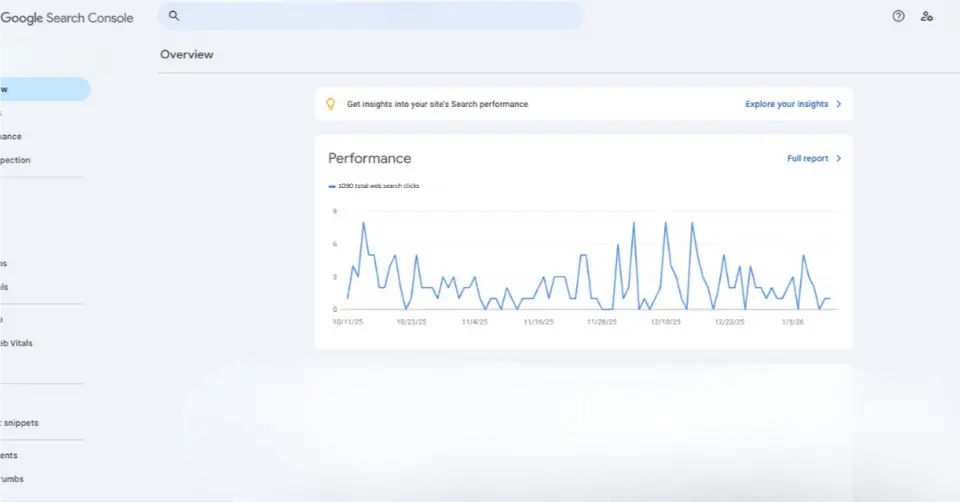
The performance report is where the magic happens. This section shows your clicks, impressions, CTR, and average position. You can filter by date range, page, country, or device type. Desktop and mobile results often differ significantly.
I spend most of my time in Google Search Console right here. The data reveals which pages perform well and which need work. Low CTR on a high-impression page? Your title tag needs improvement. Watching these numbers over time shows if your SEO efforts are paying off.
Finding Keyword Opportunities in Your Data
Click on the Queries tab to see what people search for before finding you. This keyword data is pure gold for SEO strategy. You’ll discover terms you rank for that you didn’t even target. These are opportunities waiting to be optimized.
Look for keywords where you rank on page two. With some focused optimization, you can push them to page one. I do this exercise monthly for every client. It’s incredible how much organic traffic you can gain. Just find those almost-there keywords and give them extra attention.

How URL Inspection and Crawl Reports Keep Your Site Healthy
The URL inspection tool lets you check any page on your site. Just paste a URL, and Google tells you its index status. You’ll see when it was last crawled. The tool also shows any problems Google found on that page.
Here’s what URL inspection reveals:
- Whether the page is in Google’s index
- Mobile usability issues on that specific URL
- Any crawl errors are preventing proper indexing
- The page’s canonical URL status
- Enhancement opportunities for rich results
When I publish new content, I request indexing through this tool. It speeds up the process significantly. Use Google Search Console’s crawl stats to monitor overall site health, too. Regular checks prevent minor issues from becoming big problems.
Check for Security Issues and Review Internal Links
Security matters for SEO more than most people realize. Google Search Console alerts you to any security issues on your site. Hacked content or malware can destroy your rankings overnight. Check this section regularly to stay safe.
The internal links report shows how pages on your site connect. Strong internal linking helps Google understand your content structure. It also effectively passes authority between your pages. I use Google Search Console to find orphan pages with no internal links. These pages often struggle to rank because Google can’t easily crawl them. Connect them to your main content for better results.
Start Using Google Search Console to Optimize Your Site Today
You now have the knowledge to use Google Search Console effectively. This tool gives you insights no other platform can match. Start by setting up your account and submitting your sitemap. Then make checking your performance report a weekly habit.
Connect Google Analytics to get even deeper insights into your traffic. Together, these tools tell the complete story of your SEO performance. I’ve helped dozens of sites improve their rankings using these exact methods. The data is there waiting for you. Take action on what you learn. Your website’s success depends on it. Don’t let this powerful free tool go unused any longer.
Related Services
Frequently Asked Questions
-
Q: How long does it take for Google Search Console to show data?
A: New accounts typically start showing data within 2-3 days. However, meaningful trends take longer to develop. Give it at least 2-4 weeks before concluding. Historical data builds up over time. The more data you have, the better your insights become. Be patient during the initial setup period.
-
Q: Can I use Google Search Console for multiple websites?
A: Yes, absolutely. You can add as many websites as you need to one account. Each site becomes a separate property in your dashboard. Just verify ownership for each domain you add. I manage dozens of client sites from my single account. It keeps everything organized and easy to access.
-
Q: What's the difference between clicks and impressions in the performance report?
A: Impressions count when your page appears in search results. Clicks count when someone actually visits your site. A page might get 1,000 impressions but only 50 clicks. That's a 5% CTR. High impressions with low clicks usually mean your title or description needs work.
-
Q: How often should I check Google Search Console?
A: I recommend weekly checks for most websites. Look at performance trends and any new issues. Monthly deep dives help you spot optimization opportunities. Large sites or those making frequent changes might need daily monitoring. Set a schedule that works for your situation and stick to it.
-
Q: Why aren't all my pages showing in the index coverage report?
A: Several reasons cause pages to be excluded from indexing. Duplicate content, noindex tags, or crawl errors are common culprits. Some exclusions are intentional and fine. Check the specific reason listed for each excluded URL. The report tells you exactly why Google isn't indexing each page.
-
Q: Do I need coding skills to use Google Search Console?
A: Not at all. The interface is designed for everyone. Most features require no technical knowledge whatsoever. You might need basic help for initial verification. After that, everything is point-and-click simple. Google provides helpful documentation for any questions that come up along the way.